Welcome to Megingiard, a bespoke companion application specifically designed for the AYN Thor dual-screen Android handheld. Megingiard combines deep Android hardware video stream manipulation with modern Jetpack Compose interfaces to turn your secondary display into a fully interactive tool belt: a latency-free, multi-cutout mirror of your primary screen, a virtual keyboard, a virtual touchpad, a configurable MacroPad, and a virtual gamepad — all driven by native input injection for sub-millisecond response.
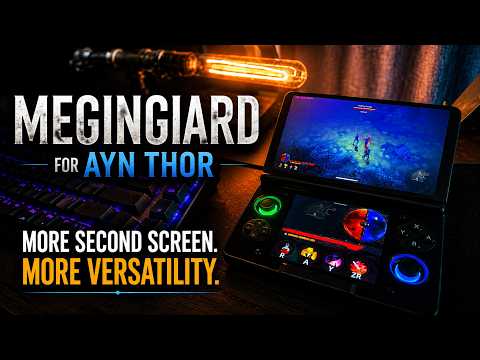
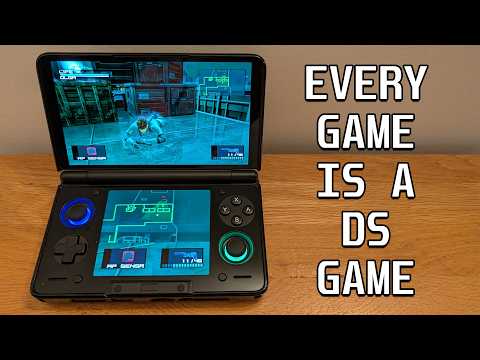
Megingiard Feature Overview by Rye J’s Outpost · Turn All Your Games Into Dual Screen Games by RoeTaKa
Device Compatibility · Documentation · Core Features · Screenshots · Installation · Quick Start · Privileged Mode · Privacy · Releases · FAQ & Troubleshooting · Security · License · Support This App · Links
- Target device: AYN Thor (gaming handheld with two displays)
- Minimum Android version: 13 / API 33 (which is what the Thor comes with)
- Other devices: Not supported. Megingiard depends on hardware-specific
paths (
/dev/input/event*, the secondary display, the AYN Thor input layout) that might not exist on other phones or handhelds. Also, I just don't have any other dual screen handhelds 😅
Given its hardware-specific approach and advanced features, this project is extensively documented:
- Requirements: Functional capabilities and the design constraints under which the app was engineered.
- Technical Architecture: A detailed deep dive into the implementation approaches, focusing specifically on bypassing DRM blocks, rendering Jetpack Compose over native system dialogs (Presentations), and hardware-backed frame freezing.
- Security Concept: Threat model, hardening layers, Privileged Mode authentication, native binary integrity checks, and release configuration requirements.
- Agent Guidelines: Coding conventions, patterns, and constraints for AI coding agents working on this project.
- Contributing Guidelines: Architectural rules, styling conventions, and licensing compliance instructions for human contributors.
- Manual Verification Guide: Step-by-step manual regression tests and PR sanity checklists.
- Direct Hardware Pipe: Utilizes Android's
MediaProjectioncoupled with nativeVirtualDisplaydirectly into aSurfaceViewto bypass all software composition and copy steps. - Multi-Cutout Layout Editor: Define up to 10 cropped regions ("cutouts") of the primary screen and arrange them freely on the secondary screen using a single-surface duplication architecture that prevents token conflicts and display freezes.
- Aspect Ratio Lock Modes: Configure aspect ratio locking per cutout: Free for independent sizing, Top (source-locked) to scale destination bounds uniformly, and Bottom (destination-locked) to auto-adjust source crops.
- Edge Blending & Circular Shapes: Apply additive edge gradients (up to 100 dp) to create seamless transitions without dark seams between adjacent cutouts, or toggle cutouts to render as perfect circles.
- Temporal Motion Smoothing: Select between Off, Light, Medium, or Strong temporal filtering (exponential moving average) to stabilize UI elements in individual cutouts.
- Follow Touch Mode: Real-time touch tracking on the primary screen. The mirror viewport automatically centers on the spot last touched on the primary screen at your current zoom level, with optional movement smoothing. Can be configured to temporarily disable during macro execution to prevent movement conflicts.
- Customizable Controls: Fully integrate mirror controls (Start / Stop / Freeze / Viewport reset) directly as buttons onto your custom MacroPad layouts, or use the always-present controls in the Quick Menu overlay.
- See it in Action: Watch the screen mirroring demonstration by dylosama on YouTube Shorts.
- Configurable Button Pad: Create named profiles with multiple custom layouts, featuring free-placement buttons of varying size, shape, and actions.
- Rich Action Mapping: Bind buttons to standard keyboard keys, gamepad buttons, mouse buttons, scroll wheels, or trackpoints (relative mouse movement/virtual touch).
- Robust Layout Editor: Drag-to-place button layout canvas with rectangular or radial snap grids, and an integrated grid picker backed by the Material Symbols library with over 4,000 icons.
- App-Aware Profile Auto-Switching: Bind profiles to specific Android applications. When a mapped app is launched on the primary screen, Megingiard instantly switches to its associated MacroPad profile on the secondary screen. This event-driven feature uses a dedicated, highly efficient Accessibility Service (with system UI exclusions to prevent focus loops) and offers a live connection status dot in settings.
- Visual Macro Editor & Recorder: Hand-craft or record and edit timed sequences of key, mouse, and gamepad events. Record macros from on-screen taps or, in Privileged Mode, directly from your physical controller. Includes timing & duration randomizers (dynamic random offsets between 10ms and 100ms added per-step) to simulate natural, human-like variation.
- On-Screen Custom Layouts: Full virtual keyboard offering QWERTZ / QWERTY / AZERTY layouts, number row, F1–F12, arrow keys, and standard modifiers.
- Smart Modifiers: Tap modifier keys (Shift, Ctrl, Alt, Meta) to make them sticky (one-shot), or long-press to hold.
- Integrated Trackpoint: Navigate the mouse cursor on the primary screen directly using a visual trackpoint on the keyboard layout.
- Kernel Repeat Controls: Configurable key repeat rate; with repeat disabled, key-up is sent immediately to suppress the kernel's auto-repeat.
- Kernel-Level Mouse Emulation: Turn the secondary display into a relative trackpad controlling a physical system mouse recognized by Android.
- Sub-Millisecond Response: Touch events are injected straight into the kernel input stream via native binaries (
/dev/uinput) with less than 1ms latency. - Multi-Tap Gestures: Simple and reliable gestures: single tap for Left Mouse Button, double tap for Right Mouse Button, and triple tap for Middle Mouse Button.
- Always-Visible Edge Quick Menu Bar: A tiny swipe affordance overlay on the bottom secondary display. Inward swipe opens the Quick Menu, letting you switch profiles/tools, toggle mirroring, or open settings without ever leaving your current layout.
- Dark Gaming Aesthetics: Borderless immersive fullscreen styling designed to respect the dark environment of secondary display gaming and prevent distraction from the main screen.
| Primary screen | Secondary screen |
|---|---|
 |
 |
Dual-screen companion experience in action. The primary screen displays your target game or app, while the secondary screen hosts your custom MacroPad layout or active companion tool.

The step-by-step interactive welcome tour that guides new users through Megingiard's features, gestures, Quick Menu navigation, and initial configuration.
| Compact Full Keyboard | Ergonomic Split Keyboard |
|---|---|
 |
 |
| Relative Mouse Touchpad | Absolute Touch Touchpad |
 |
 |
Virtual input modes designed for the secondary screen. Top row: Full Compact and Ergonomic Split on-screen keyboards with sticky modifiers and trackpoints. Bottom row: Kernel-level Relative Mouse Trackpad and Absolute Touch direct digitizer emulation modes.

The built-in layout editor with rectangular snap grid enabled. Buttons can be placed freely, resized, and snapped to grid for precise alignment.

Per-button configuration: choose the action type (keyboard key, gamepad button, mouse button, scroll wheel, or trackpoint), pick an icon from the Material Symbols library, and set the button size and shape.

The macro editor lets you inspect and fine-tune recorded or hand-crafted event sequences, complete with precise timing control for each step.

Macro recording in progress. Tap buttons on the secondary screen (or use your physical controller in Privileged Mode) and Megingiard captures the full event sequence with timing.

The Quick Menu — swipe the edge quick menu bar inward to switch between Mirror, MacroPad, Keyboard, and Touchpad, change profiles, control the mirror, or open settings. Everything accessible without leaving your current screen.

The Privileged Mode setup & settings card. Easily pair on-device via Wireless Debugging, deploy the helper daemon, and toggle individual privileged capabilities (Gamepad Merge, Gamepad Recording, Privileged Mirror).
- Download the latest signed
Megingiard-vX.Y.Z.apkfrom the Releases tab on GitHub. - On the AYN Thor, allow your browser or file manager to install unknown apps (Android Settings → Apps → <your file manager> → "Install unknown apps").
- Open the APK to install.
- Launch the app and start configuring!
There is no Google Play Store listing; APK side-loading is the official distribution channel.
To automatically track releases and install updates directly on your device, you can add Megingiard to Obtainium.
- In the app, click on Settings → Configuration → Add to Obtainium.
- Launch the App: Open Megingiard from your launcher. It only works on the secondary display, so make sure to start it from there or configure your launcher to pin/run it on the bottom screen.
- Configure Accessibility Service (Optional): If you want to use App-Aware Automatic Profile Switching, you must activate Megingiard's Accessibility Service:
- Go to Android Settings → Accessibility → Installed Apps / Downloaded Services.
- Select Megingiard Accessibility Service and enable it.
- Toggle Auto-switch profiles in Megingiard's Global Settings.
- Access Quick Menu: Swipe the edge quick menu bar (visible on the bottom edge of the secondary screen) inward. From here, you can:
- Switch active tools (Mirror, MacroPad, Keyboard, Touchpad).
- Pick layouts and profiles.
- Start, freeze, or stop the screen mirror.
- Open global settings.
- Exit App: Close Megingiard via the standard Android Recents view — there is no in-app exit button to keep your screen completely clear of clutter.
Privileged Mode is an opt-in feature that unlocks advanced features that the regular Android sandbox cannot deliver due to security constraints. It is disabled by default and can be toggled on or off at any time in Global Settings.
Megingiard packages a lightweight, native on-device helper daemon (megingiard_privd) inside the APK. When you activate Privileged Mode, the in-app setup wizard leverages Android's built-in Wireless Debugging facility (available since Android 11) to deploy the daemon to /data/local/tmp and run it under the shell user (UID 2000) — the same security domain used by an adb shell session. The app then establishes a secure process-local Unix socket connection to communicate with the daemon.
This architecture requires no root, no USB cables, no PC, and no external servers. The entire bootstrap runs completely on the device itself through the wizard at the bottom of Global Settings.
| Feature | What you gain with Privileged Mode | Fallback without it |
|---|---|---|
| Gamepad Merge | Games see only one controller, seamlessly blending MacroPad virtual inputs on top of your physical controller. | A second virtual controller appears alongside the physical one. Some games might ignore inputs from one of the devices. |
| Gamepad Recording | Record macros from your real, physical controller in real-time while the target game continues to receive inputs. | Use the on-screen virtual-controller recording overlay. |
| Privileged Mirror | The screen mirror starts instantly without asking for MediaProjection consent every time. | Standard Android screen-recording consent dialog appears on every mirror start. |
The standard Android application sandbox (running in the untrusted_app SELinux domain, with no input group membership) is strictly prevented from writing to /dev/uinput or physical /dev/input/event* nodes directly, and cannot initiate system SurfaceControl mirror paths. The Android shell UID carries the necessary input group permissions and a more permissive SELinux profile, enabling native input injection and projection control.
- Auto-Connect: Once configured, Megingiard silently reconnects to the local daemon on cold starts. No manual pairing or re-pairing is needed.
- No Recurring Prompts: The Privileged Mirror skips the OS screen capture warning completely on every launch.
- Per-Feature Toggles: Choose exactly which features to run under Privileged Mode and which to run in fallback.
⚠️ Daemon Lifespan: The daemon will not survive a device reboot because Android clears/data/local/tmpon startup. You will need to re-run the pairing wizard (takes less than 30 seconds) after booting.
Privileged Mode is powerful, and you should understand its security scope:
- Shell-Level Scope (UID 2000): The daemon runs with the same rights as
adb shell. It can read/write input nodes to emulate controllers and keys, but cannot escalate to root, modify system/read-only partitions, or read private data belonging to other applications. - Trusted Sources Only: Only run Privileged Mode if you trust the source code and signed releases. ONLY DOWNLOAD THE APK FROM THE OFFICIAL GITHUB RELEASES PAGE.
- Completely Local & Offline: The Wireless Debugging pairing is a local loopback handshake. The daemon only listens on a process-local abstract Unix socket inaccessible from any external network. Megingiard makes no outbound network connections.
- Easy Opt-Out: You can disable Privileged Mode at any time. All features gracefully degrade to their standard sandbox fallbacks.
Each release includes a SHA-256 checksum file (e.g. Megingiard-vX.Y.Z-checksum-sha256.txt). Verify the hash of your downloaded APK before installation to ensure its integrity.
macOS
shasum -a 256 Megingiard-vX.Y.Z.apkLinux
sha256sum Megingiard-vX.Y.Z.apkWindows (PowerShell)
Get-FileHash Megingiard-vX.Y.Z.apk -Algorithm SHA256 | Select-Object -ExpandProperty HashEnsure the output matches the checksum in the .txt file exactly before sideloading. For absolute authenticity, always verify the developer's signing certificate fingerprint.
- Go to Android Settings → System → Developer Options, and enable Wireless Debugging.
- Tap "Pair device with pairing code" — Android will show an IP address, port, and a 6-digit pairing code.
- Enter the port and pairing code into Megingiard's setup wizard.
- The wizard pairs with the local ADB service, deploys the daemon, launches it, and runs a self-test.
- Tap Test Connection in Settings at any time to verify the socket link is active.
- No Analytics or Telemetry: Megingiard collects nothing, logs nothing externally, and sends nothing. Your device data is entirely yours.
- No Internet Required: The local pairing stays on the device's loopback interface. Megingiard makes zero external internet calls.
- Local Storage: All custom profiles, layout setups, and macros are stored strictly on-device using Jetpack DataStore.
- Releases are officially tagged
vMAJOR.MINOR.PATCHand published in the GitHub Releases tab. - Each release bundle includes:
- The signed production APK (
Megingiard-vX.Y.Z.apk) - The MD5 verification checksum file
- Detailed changelogs organized by feature area and daemon changes
- The signed production APK (
- Pre-releases are clearly labeled and carry
-betaor-rcsuffixes.
The mirror screen is black.
Try stopping and restarting the mirror from the Quick Menu. If the screen remains black, open a GitHub issue specifying your current app version and replication steps.
Android requests screen recording permission on every mirror start.
This is default Android behavior. Enable Privileged Mode and turn on the Privileged Mirror feature in Settings to skip this prompt permanently.
Privileged Mode shows "OFF" after I rebooted my Thor.
This is expected. Android wipes
/data/local/tmpon reboots. Sideloaded daemons cannot autostart on boot without root. Simply re-run the pairing wizard (takes ~30 seconds).
My game sees two controllers when using the MacroPad.
Enable Privileged Mode and turn on Gamepad Merge. This merges the MacroPad's virtual actions onto your physical controller's stream, hiding the double controller from the game.
Only MacroPad buttons or only physical gamepad inputs are registered, not both.
Some Android games only accept a single active input source. Enabling Gamepad Merge under Privileged Mode resolves this.
Wireless Debugging pairing fails.
Ensure you enter the pairing port (shown in the popup pairing code dialog) and not the connection port (shown on the main Wireless Debugging screen). These are two different, dynamic five-digit numbers.
Deploying the daemon fails.
Sometimes the local ADB loopback handshake takes a few extra seconds to initialize. Try running the test/deploy step 1 or 2 more times — this always resolves transient socket connection timeouts.
Can I run this on other dual-screen devices or phones?
No. Megingiard targets the specific screen geometry, hardware-specific mapping paths, and physical event codes of the AYN Thor. It will not work on different hardware configurations.
Why isn't automatic profile switching working?
- Ensure Megingiard's Accessibility Service is enabled (Android Settings → Accessibility → Megingiard Accessibility Service).
- Ensure Auto-switch profiles is toggled ON under Global Settings.
- Verify that your profile has a correct app mapping selected in the Profile Editor (tap "Clear App Mapping" and re-select the application if necessary).
- Remember that profile switching is ignored when Megingiard, core system overlays (
com.android.systemui), or system dialogs (android) are in the foreground to prevent focus loops.
Megingiard combines APK signature pinning, release-build fail-closed checks, SHA-256 verification of native assets, and mutual HMAC-SHA256 authentication for the Privileged Mode daemon socket. The concise entry point is SECURITY_CONCEPT.md; detailed daemon and native-binary behavior is documented in Privileged Mode and Build Native.
Megingiard is a proprietary, source-available project. It is licensed under the custom Megingiard Source-Available License (Version 1.0).
- Source Code & Binaries: You are permitted to view the source code, compile it, and run the application solely for your own personal, non-commercial use.
- Prohibitions: Any commercial exploitation, redistribution of modified source/binaries, and pre-installation or bundling on commercial hardware/devices without prior written consent are strictly prohibited.
- Open Source Transition Commitment: The Copyright Holder commits to transitioning the entire codebase to a fully permissive, OSI-approved open-source license (such as MIT or Apache 2.0) with full redistribution rights in the event that active development is permanently discontinued without a successor.
For the full terms and conditions, please refer to the LICENSE file at the root of the repository.
Megingiard is completely free to use for personal, non-commercial use. If you enjoy using it and want to support its ongoing development, feel free to buy me a non-existent coffee! Your support and feedback are highly appreciated. <3

📣 Are you creating videos, guides, or posts featuring Megingiard? Reach out, and I will gladly feature your content right here! 📣
- Megingiard Feature Overview by Rye J’s Outpost - A detailed general feature walkthrough and overview of Megingiard.
- Turn All Your Games Into Dual Screen Games by RoeTaKa - A setup and configuration guide showing how to use Megingiard for different gaming layouts.
- Another Must Have App for the AYN Thor! by Joey's Retro Handhelds - A detailed (and funny!) setup walkthrough and app overview featuring Megingiard. focused on the screen mirroring aspect.
- Screen Mirroring Demo by dylosama - A YouTube Short highlighting the app's latency-free, multi-cutout screen mirroring functionality in action.
- Megingiard is featured in GAFT (Games & Apps for AYN Thor) - A community-curated directory of dual-screen games, companion app pairings, and Android ports for the AYN Thor, created and maintained by Andrey Velsk (@andreyvelsk).