
Run Large Language Models on your Intel Core Ultra NPU with an OpenAI-compatible API.
- NPU Acceleration: Leverage Intel's Neural Processing Unit for power-efficient AI
- OpenAI-Compatible API: Works with any OpenAI client (Open WebUI, LangChain, N8N)
- Built-in Chat UI: Beautiful dark-mode interface at
http://localhost:8000— no Docker needed - Multi-Model Support: Load and switch between multiple models from the UI
- Conversation History: Full multi-turn context management
- Markdown Rendering: Clean formatting for code blocks, lists, and structured output
- Real-time Monitoring: Live NPU status, memory usage, and system telemetry
- Tool Calling: Function calling support for building AI agents
- Local & Private: All processing happens on your device — nothing leaves your machine
- Power Efficient: ~3-5x less power than CPU inference
| Quick Overview & Speed Test | Feature Deep Dive |
|---|---|
 |
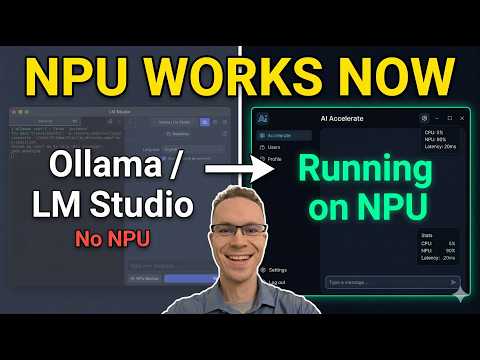 |
| Intel NPU LLM - UI & Performance Demo | Building with Intel NPU & OpenAI API |
- Processor: Intel Core Ultra with an Intel NPU / AI Boost device present. Meteor Lake, Arrow Lake, and Lunar Lake are known profiles; newer Core Ultra variants continue with a warning if preflight checks pass.
- OS: Windows 11 (build 22000 or newer)
- NPU Driver: Version 32.0.100.3104 or newer
- Python: 3.11 (managed via Miniconda)
- Docker Desktop: For Open WebUI frontend (optional)
The easiest way is to run the included setup script — it handles Miniconda, the conda environment, and all Python packages automatically:
.\setup.batWhat it does: Installs Miniconda if missing, creates the
ipex-npuconda environment (Python 3.11), installsipex-llm[npu]and all server dependencies, and optionally saves a HuggingFace token. Each step is skipped if already complete — safe to re-run after failures.
Hardware preflight:
setup.batnow checks Windows build, CPU family, Intel NPU driver version, and any blocked BIOS versions listed insetup/compatibility.jsonbefore it installs anything.
Optional setup overrides:
.\setup.bat -AllowUnsupportedHardware
.\setup.bat -SkipDriverCheck
.\setup.bat -EnvName my-ipex-npu
Support and validation tools:
powershell -ExecutionPolicy Bypass -File .\setup\collect_support_info.ps1
powershell -ExecutionPolicy Bypass -File .\setup\test_compatibility_matrix.ps1
Note: If Miniconda is installed for the first time, the script will ask you to close and reopen the terminal, then run
.\setup.batagain to finish.
Manual setup (advanced)
# Install Miniconda (if not installed)
winget install Anaconda.Miniconda3
# Reopen terminal, then:

conda create -n ipex-npu python=3.11 -y
conda activate ipex-npu

pip install --pre --upgrade ipex-llm[npu]
pip install -r intel-npu-llm/requirements.txtSome models (Llama 2, Llama 3, Llama 3.2) require HuggingFace authentication.
setup.bat prompts for this automatically. To set it up manually:
- Create a HuggingFace account at huggingface.co
- Accept the model license - Visit the model page (e.g., meta-llama/Llama-3.2-3B-Instruct) and accept the terms
- Generate an access token at huggingface.co/settings/tokens
- Run the token setup script:
powershell -ExecutionPolicy Bypass -File .\setup\04_hf_token.ps1Or create intel-npu-llm/.env manually:
HF_TOKEN=hf_xxxxxxxxxxxxxxxxxxxxxxxxxxxxxxxxxxxx
Note: Without this, gated models will fail to download. Non-gated models (Qwen, DeepSeek, MiniCPM, GLM-Edge, Baichuan2) work without authentication.
# From the project root - loads 1 model by default (qwen1.5-1.8b)
.\start_server.bat

> **Note**: `start_server.bat` runs the same hardware preflight before startup and
> auto-configures `IPEX_LLM_NPU_MTL` for known Meteor Lake systems. Unknown/newer
> Core Ultra generations continue in a generic profile unless preflight blocks them.
Useful startup overrides (PowerShell):
$env:NPU_CONDA_ENV = 'ipex-npu'
$env:NPU_ALLOW_UNSUPPORTED = '1'
$env:NPU_SKIP_DRIVER_CHECK = '1'
$env:NPU_SKIP_PREFLIGHT = '1'
.\start_server.bat --list
For bug reports, generate a redacted support bundle:
.\start_server.bat --diagnoseOr load specific models:
.\start_server.bat --models "qwen1.5-1.8b,llama3.2-1b,qwen1.5-4b"List all available models:
.\start_server.bat --listChange the server port (if 8000 is occupied):
.\start_server.bat --port 8001Mixed usage:
.\start_server.bat --models "qwen1.5-4b" --port 8080Or manually:
$env:IPEX_LLM_NPU_MTL = "1"  # For Meteor Lake (Core Ultra Series 1)
conda activate ipex-npu
cd intel-npu-llm
python npu_server.pycd intel-npu-llm
docker compose up -dOpen http://localhost:8000 in your browser for a full-featured chat interface:
- Real-time NPU status with animated indicators (Connecting, Busy, Idle)
- Model selector dropdown (loaded models populate automatically)
- Conversation history with multi-turn context
- Markdown rendering (code blocks, lists, bold/italic)
- Keyboard shortcuts:
Enterto send,Shift+Enterfor newline,Ctrl+Lto clear - Live Telemetry: Real-time NPU busy state, system RAM usage, and model disk footprint (NPU + HuggingFace cache)
- Live token counter for the entire session
/— Built-in Chat UI/v1/chat/completions— OpenAI Chat Completions API (Open WebUI, LangChain, curl)/v1/responses— OpenAI Responses API (N8N)/v1/models— List loaded models/v1/models/load— Queue a model to load into memory/v1/models/unload— Unload a model from memory/v1/models/delete— Delete local model caches (HF & NPU)/v1/system/status— System telemetry (memory, CPU, NPU busy state)/health— Health check
If you already have Open WebUI running elsewhere (e.g., on a homelab server), configure it to use your NPU server:
- In Open WebUI: Go to Settings → Connections → OpenAI API
- Add a new connection with these settings:
- API Base URL:
http://<YOUR-WINDOWS-PC-IP>:8000/v1 - API Key:
sk-dummy(any value works, the NPU server doesn't validate keys)
- API Base URL:
- Save and your NPU models will appear in the model dropdown
Tip: Find your Windows IP with
ipconfigin PowerShell. Use your local network IP (e.g.,192.168.1.x).
Firewall Note: You may need to allow port 8000 through Windows Firewall for remote connections.
To use your NPU server with N8N workflows:
- In N8N: Add an OpenAI node to your workflow
- Configure credentials:
- API Key:
sk-dummy(any value) - Base URL:
http://<YOUR-WINDOWS-PC-IP>:8000/v1
- API Key:
- Select model: Use one of the loaded model IDs (e.g.,
qwen1.5-1.8b)
Note: N8N uses the
/v1/responsesAPI endpoint, which is fully supported.
The server supports OpenAI-compatible tool/function calling for building AI agents:
{
    "model": "qwen2.5-7b",
    "messages": [{"role": "user", "content": "What's the weather in NYC?"}],
    "tools": [{
        "type": "function",
        "function": {
            "name": "get_weather",
            "description": "Get weather for a location",
            "parameters": {
                "type": "object",
                "properties": {"location": {"type": "string"}},
                "required": ["location"]
            }
        }
    }],
    "tool_choice": "auto"
}tool_choice |
Behavior |
|---|---|
"auto" |
Model decides when to use tools (default) |
"none" |
Disable tool calling, respond normally |
"required" |
Force the model to call at least one tool |
{"type": "function", "function": {"name": "get_weather"}} |
Force specific tool |
- Parallel tool calls: Model can call multiple tools in one response
- Streaming tool calls: Tool calls are detected and emitted at end of stream
- Retry logic: Malformed tool calls are automatically retried (max 2 attempts)
- Tool validation: Only defined tools are parsed, invalid calls are ignored
Recommended models: qwen2.5-7b, qwen2.5-3b (larger models work better)
Note: Tool calling works best with 3B+ parameter models. Smaller models may struggle.
All models below are officially verified for Intel NPU via ipex-llm:
| Model ID | Size | NPU Speed | Notes |
|---|---|---|---|
qwen1.5-1.8b |
1.8B | ~8 tok/s | ✅ Default - Verified working |
qwen1.5-4b |
4B | ~5 tok/s | Better quality |
qwen1.5-7b |
7B | ~3 tok/s | Best Qwen1.5 |
qwen2-1.5b |
1.5B | ~10 tok/s | Official NPU verified |
qwen2-7b |
7B | ~3 tok/s | Official NPU verified |
qwen2.5-3b |
3B | ~8 tok/s | 🔥 Latest Qwen |
qwen2.5-7b |
7B | ~3 tok/s | 🔥 Best Qwen 2.5 |
| Model ID | Size | NPU Speed | Notes |
|---|---|---|---|
llama2-7b |
7B | ~3 tok/s | Classic, requires HF login |
llama3-8b |
8B | ~2 tok/s | Powerful, requires HF login |
llama3.2-1b |
1B | ~15 tok/s | ⚡ Fastest Llama, requires HF login |
llama3.2-3b |
3B | ~10 tok/s | Fast & capable, requires HF login |
| Model ID | Size | NPU Speed | Notes |
|---|---|---|---|
deepseek-1.5b |
1.5B | ~10 tok/s | Fast reasoning |
deepseek-7b |
7B | ~3 tok/s | Best reasoning |
| Model ID | Size | NPU Speed | Notes |
|---|---|---|---|
glm-edge-1.5b |
1.5B | ~10 tok/s | Chinese/English bilingual |
glm-edge-4b |
4B | ~5 tok/s | Larger bilingual model |
| Model ID | Size | NPU Speed | Notes |
|---|---|---|---|
minicpm-1b |
1B | ~15 tok/s | Ultra-compact, efficient |
minicpm-2b |
2B | ~10 tok/s | Small but capable |
| Model ID | Size | NPU Speed | Notes |
|---|---|---|---|
baichuan2-7b |
7B | ~3 tok/s | Chinese-focused LLM |
.\start_server.bat --models "qwen2.5-3b,llama3.2-1b,minicpm-2b"Note: First run downloads and compiles each model (1-3 min). Subsequent loads are instant from cache.
| Metric | NPU | CPU | iGPU |
|---|---|---|---|
| Power Draw | ~5-10W | 15-45W | 20-35W |
| Battery Life | Hours | ~1 hour | ~2 hours |
| Best For | Efficiency, Background Tasks | Fallback | Max Performance, Larger models |
| Processor Architecture | NPU TOPS | GPU TOPS | CPU TOPS | Total Platform TOPS |
|---|---|---|---|---|
| Core Ultra Series 1 (Meteor Lake) (e.g., Core Ultra 9 185H) | ~11 TOPS | ~18 TOPS | ~5 TOPS | ~34 TOPS |
| Core Ultra Series 2 (Arrow Lake) | ~13 TOPS | ~18 TOPS | ~5 TOPS | ~36 TOPS |
| Core Ultra Series 2 (Lunar Lake) | 48 TOPS | ~67 TOPS | ~5 TOPS | ~120 TOPS |
| Variable | Value | Description |
|---|---|---|
IPEX_LLM_NPU_MTL |
1 |
Required for Meteor Lake (Core Ultra Series 1) |
NPU_CONDA_ENV |
env name | Conda environment that start_server.bat activates |
NPU_ALLOW_UNSUPPORTED |
1 |
Continue past preflight failures with warnings |
NPU_SKIP_DRIVER_CHECK |
1 |
Skip only the Intel NPU driver version check |
NPU_SKIP_PREFLIGHT |
1 |
Bypass all startup hardware checks |
HF_HOME |
path | Hugging Face cache directory |
REQUESTS_CA_BUNDLE |
path | Optional custom CA bundle for HTTPS model downloads |
SSL_CERT_FILE |
path | Alternate way to point Python HTTPS clients at a CA bundle |
PORT |
8001 |
Default port for the server |
setup/compatibility.json is the repo's compatibility policy file.
blockedBiosVersions: hard blocks specific BIOS/firmware versions.knownValidatedCombos: records reported-good CPU / BIOS / driver combinations.knownProblemCombos: records reported-bad combinations, either as errors or warnings.
Keep speculative entries out of this file. Add only combinations that came from real machine reports or direct validation.
| Processor Series | Environment Variable |
|---|---|
| Core Ultra Series 1 (Meteor Lake) | IPEX_LLM_NPU_MTL=1 |
| Core Ultra Series 2 (Arrow Lake) | None required |
| Core Ultra (Lunar Lake) | None required |
- Check Device Manager → Neural processors → Intel(R) AI Boost
- Update NPU driver to latest version
- Ensure
IPEX_LLM_NPU_MTL=1is set for Meteor Lake - Run
.\setup\00_hardware_preflight.ps1to see the exact compatibility failure - If a BIOS release is known-bad for your machine, add it to
setup/compatibility.jsonunderblockedBiosVersions - Run
.\start_server.bat --diagnoseand attach the generated JSON when reporting an issue
- First generation takes 1-3 minutes for NPU warmup
- Subsequent generations are fast (~1 second)
# Kill existing Python processes
Get-Process python* | Stop-Process -ForceThis happens when the .env file was saved in UTF-16 (the default for PowerShell's > redirect).
Fix: Re-create the file using the UTF-8 safe command:
'HF_TOKEN=hf_your_token_here' | Out-File -FilePath .env -Encoding utf8Or open the file in Notepad → File > Save As → set Encoding: UTF-8.
Current setup installs python-certifi-win32, which lets Python use the Windows certificate store for Hugging Face downloads.
If your environment was created before this dependency was added:
- Re-run
./setup.bat --skip-hf-token - Or install the fix directly:
conda run -n ipex-npu pip install python-certifi-win32 - If your organization provides a custom CA bundle, set
REQUESTS_CA_BUNDLEorSSL_CERT_FILEto that.pemfile before starting the server
Models are stored in two locations:
| Location | Contents | Path |
|---|---|---|
| HuggingFace Cache | Original downloaded models | %USERPROFILE%\.cache\huggingface\hub\ |
| NPU Cache | Compiled NPU-optimized models | intel-npu-llm\npu_model_cache\ |
Tip: The built-in chat UI at
http://localhost:8000shows total model disk usage live in the header (disk icon chip).
| Model Size | HF Cache | NPU Cache | Total |
|---|---|---|---|
| 1-2B models | ~2-4 GB | ~1-2 GB | ~3-6 GB |
| 3-4B models | ~6-8 GB | ~2-4 GB | ~8-12 GB |
| 7-8B models | ~14-16 GB | ~4-8 GB | ~18-24 GB |
# NPU cache size (compiled models)
"{0:N2} GB" -f ((Get-ChildItem -Recurse .\intel-npu-llm\npu_model_cache\ -ErrorAction SilentlyContinue | Measure-Object -Property Length -Sum).Sum / 1GB)

# HuggingFace cache size (downloaded weights)
"{0:N2} GB" -f ((Get-ChildItem -Recurse "$env:USERPROFILE\.cache\huggingface\hub\" -ErrorAction SilentlyContinue | Measure-Object -Property Length -Sum).Sum / 1GB)

# Both combined
$npu = (Get-ChildItem -Recurse .\intel-npu-llm\npu_model_cache\ -ErrorAction SilentlyContinue | Measure-Object -Property Length -Sum).Sum / 1GB
$hf  = (Get-ChildItem -Recurse "$env:USERPROFILE\.cache\huggingface\hub\" -ErrorAction SilentlyContinue | Measure-Object -Property Length -Sum).Sum / 1GB
"NPU cache: {0:N2} GB | HF cache: {1:N2} GB | Total: {2:N2} GB" -f $npu, $hf, ($npu + $hf)# Clear ALL compiled NPU models (recompiles on next run, no re-download needed)
Remove-Item -Recurse -Force .\intel-npu-llm\npu_model_cache\# Example: remove only Qwen2.5-7B compiled cache
Remove-Item -Recurse -Force ".\intel-npu-llm\npu_model_cache\Qwen_Qwen2.5-7B-Instruct\"
# List all compiled NPU model folders to find the right name
Get-ChildItem .\intel-npu-llm\npu_model_cache\
⚠️ This will force a full re-download on next use. Only do this if you need to free maximum disk space.
# Clear ALL HuggingFace downloads
Remove-Item -Recurse -Force "$env:USERPROFILE\.cache\huggingface\hub\"

# Clear a specific model from HF cache (example: Qwen2.5-7B)
Remove-Item -Recurse -Force "$env:USERPROFILE\.cache\huggingface\hub\models--Qwen--Qwen2.5-7B-Instruct\"

# List all downloaded HF models
Get-ChildItem "$env:USERPROFILE\.cache\huggingface\hub\" -Directory# Remove both NPU compiled cache AND HuggingFace downloads
Remove-Item -Recurse -Force .\intel-npu-llm\npu_model_cache\ -ErrorAction SilentlyContinue
Remove-Item -Recurse -Force "$env:USERPROFILE\.cache\huggingface\hub\" -ErrorAction SilentlyContinue
Write-Host "All model caches cleared. Models will re-download and recompile on next run."Set in your .env file to store HuggingFace models on a different drive (great for SSDs with limited C: space):
HF_HOME=D:\models\huggingface
The NPU cache location is fixed at intel-npu-llm\npu_model_cache\ relative to the project directory.
npu-windows/
├── start_server.bat             # One-click startup with auto CPU detection
├── QUICKSTART.md                 # 5-minute getting started guide
├── README.md                     # Full documentation
└── intel-npu-llm/
    ├── npu_server.py             # NPU-accelerated LLM server (FastAPI)
    ├── index.html                # Built-in dark-mode chat UI
    ├── models.json               # Model registry (add custom models here)
    ├── docker-compose.yml        # Open WebUI frontend (optional)
    ├── requirements.txt          # Python dependencies
    ├── .env.example              # Environment variable template
    └── npu_model_cache/          # Compiled NPU models (auto-created on first run)
MIT License