

Note: This is a work-in-progress project. Not to be confused with onimp/oni_multiplayer.
A new mod that introduces multiplayer functionality to Oxygen Not Included, featuring a custom networking layer and lobby system.
Note: This mod is in the very early pre-pre alpha stage.
Join the Discord
Steam workshop: You can find its workshop page here
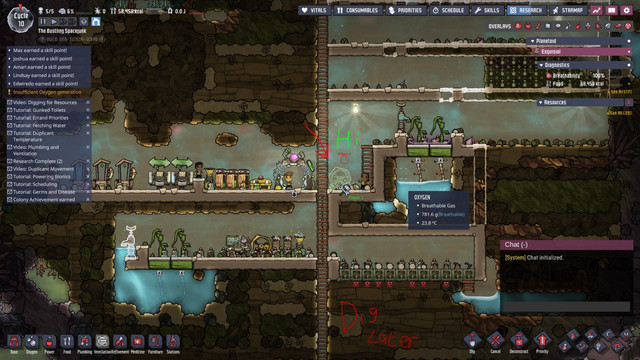
A public trello board exists that tracks whats been done, and what is coming in the next update you can find that here
Raise it on the issues page, and make a bug report on the discord.
Please at least try to include a video if you can. It makes replicating it so much easier
I like the old multiplayer mod — I do — and kudos to the guys that made it. But its implementation is very limited without a lot of extra effort, if not a full rewrite.
On top of this, it hasn't seen activity in over 6 months.
NOTE: as of June 6th 2025, when I started this project.
Initially it was just conceptual, but once I got lobbies and packets set up, I knew I was onto something.
To get started with building the mod, follow these steps:
-
Install .NET Framework 4.7.2
Make sure you have .NET Framework 4.7.2 installed on your system. -
Clone the repository
git clone https://github.com/Lyraedan/Oxygen_Not_Included_Together.git -
Open the solution
Open the.slnfile in Visual Studio (or your preferred C# IDE). -
Copy the file
Directory.Build.props.defaultand rename it toDirectory.Build.props.userfile, then adjust the paths
Open the.csprojfile and find the file underSolution Items. Copy it and rename the copy toDirectory.Build.props.user, then open that new file. Change its variableGameLibsFolderto point to your localOxygenNotIncluded_Data/Managedfolder, for example:<GameLibsFolder>C:\Program Files (x86)\Steam\steamapps\common\OxygenNotIncluded\OxygenNotIncluded_Data\Managed</GameLibsFolder>
then adjust the variable
ModFolderto point at your local dev folder, for example:<ModFolder>E:\Documents\Klei\OxygenNotIncluded\mods\dev</ModFolder>
-
(optional) Restore NuGet packages
-
Run dotnet tool restore in packet manager console (Or any other viable console)
-
IF YOU'RE ON LINUX YOU WILL NEED DOTNET 6.0 TO RUN THE PUBLICISER SEE INSTRUCTIONS HERE
-
Build the project
Once theManagedPathis correctly set, build the project.
If everything is configured correctly, the build should succeed. If there are missing reference errors, restart Visual Studio, the solution creates a publicized reference library the first time a build runs and this can confuse the IDE.
To attach a managed debugger (e.g. Visual Studio) directly to a running ONI instance:
Check your player log at %APPDATA%\..\LocalLow\Klei\Oxygen Not Included\Player.log — the first few lines will show the Unity version (e.g. Unity 2022.3.62f2).
Download that exact Unity version from unity.com/releases and navigate to:
Editor\Data\PlaybackEngines\windowsstandalonesupport\Variations\win64_development_mono\
Copy these three files to ONI's installation folder, renaming WindowsPlayer.exe → OxygenNotIncluded.exe, replacing the originals:
WindowsPlayer.exe→OxygenNotIncluded.exeUnityPlayer.dllWinPixEventRuntime.dll
Backup the originals first! Otherwise you'll need to verify game files via Steam to restore them.
Open OxygenNotIncluded_Data\boot.config in a text editor and append:
wait-for-managed-debugger=1
player-connection-debug=1
Launch the game via Steam — it will pause at a message box waiting for a debugger. Make sure you have Visual Studio Tools for Unity installed, then in VS go to Debug → Attach Unity Debugger and select the game instance.
Contributions are welcome!
If you have improvements, fixes, or new features, feel free to open a Pull Request.
Please make sure your changes are clear and well-documented where necessary.
Some contributors use AI in their contributions. These models vary from ChatGPT, Gemini etc
Personally I am not against the use of AI, I believe AI is a tool not a solution. If you're a contributor who uses AI thats fine
This project is licensed under the MIT License.
Copyright (c) 2025 - 2026 Luke Rapkin