I am going to assume that the only people who will be contributing will be members of the UK SDG data team. However, if anyone else should happen upon this repo and wish to comment or contribute please do get in touch with us at SustainableDevelopment@ons.gov.uk - your thoughts will be very welcome!
Useful resources
General guidelines
Coding conventions
Setting up your computer to work on indicator automations
Setting up a new indicator automation
Reviewing indicator automations
Finalising the automated update
Adding functions to SDGupdater
Git GUI instructions - Git bash instructions are given throughout, but the alternative instructions for GIt GUI are given here
Template codes - use these to start writing new automations (see also Setting up a new indicator automation)
Quality Assurance of Code for Research Analysis - this is where you will find a template for peer review
renv - package dependency management.
making a package - if you are unfamiliar with packages, I suggest following this walkthrough (or similar, this is just the one I used) before adding functions to SDGupdater.
Tidyverse style guide
Each indicator must have it's own folder, using the same naming convention (indicator number separated with dashes). This folder should contain the following:
- A README file containing instructions for that specific indicator.
- Input and Output folders. These are stored only in the local repo.
- Example_Input and Example_Output folders. These contain smaller files than those in Input and Output to show what the inputs and outputs should look like.
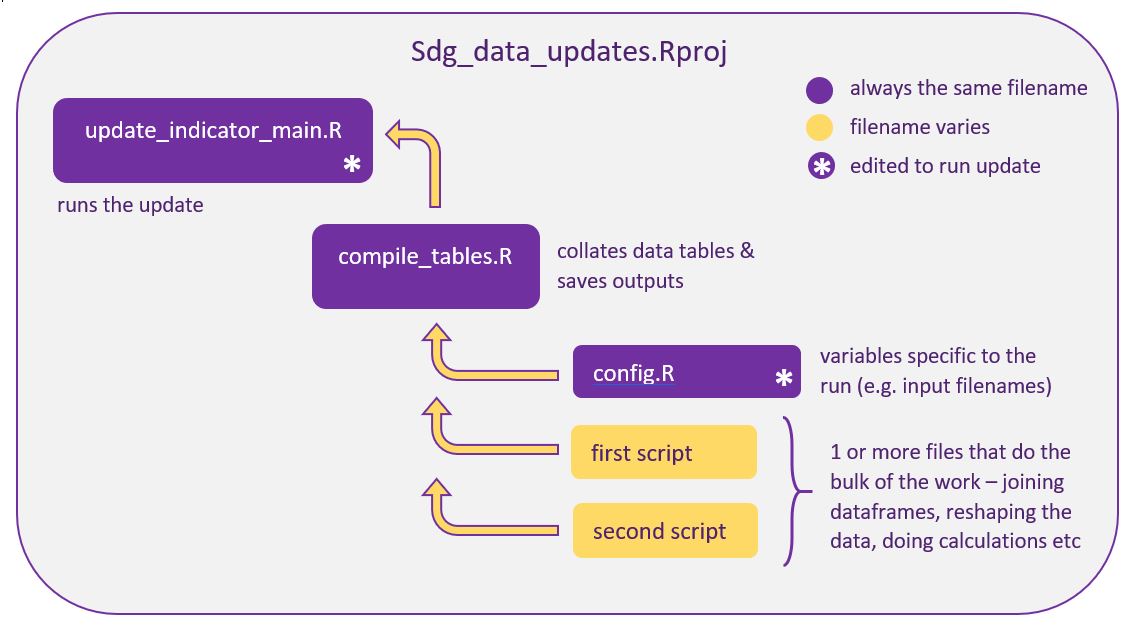
- A control script called ‘compile_tables.R’ or ‘update_code.py’.
- A config file. This is stored only in the local repo and is edited by the person running the update.
- An example_config file. This shows what the config file should look like. The configurations will relate to the data in Example_Input and Example_Output folders.
- One or several scripts that do the bulk of the work. The names of these files are not standardised, but will have a .R or .py extension.
- A QA.Rmd file. A script that creates an html document with QA information.
For updates done in R, the following code structure should be used:
- NEVER put unpublished data on this repo, even in your cloned local repository. If you need to use unpublished data, save it elsewhere and use the full filepath to read it in.
- Only edit code for one indicator on any branch
- Commit at least once a day when you are writing code. However, it is better to commit more frequently.
- Use informative commit messages and pull request comments
- Get code reviewed when merging into a branch that has other collaborators
- Review is required to merge to main
- When you complete a pull request to main, update sdg_data_updates on the shared drive
- Functions should do only one thing. If you think there is a chance it would be useful for other indicators updates, include it in SDGupdater.
- Please follow the Tidyverse style guide
- Some key points:
- Use informative names. Make it easy on future users (including yourself), by using names that tell you what is going on. This is not easy, but worth mastering. Well named objects and functions can negate the need for comments that tell you what the code does.
- Use verbs for function names (and only function names)
- Use spaces the way they would be used in a sentence (e.g. the space comes after the comma
[, 1]) - In R, assign using
<-not= - Comment on why you are doing something not what the code is doing. If you need to state what the code does, consider improving names and using well-named functions.
To edit or create automation code, you will need to have the sdg_data_repository cloned on your computer. This is essentially a local version of what is on Github. You can navigate between branches, add new files and folders, update files, and push them up to the online Github repository using either Git GUI or the command line. All instructions in the main body of this document are given for the command line software Git Bash. Git GUI instructions are given at the end of this document.
- If you don’t already have one, create a folder in a local drive (I recommend using D:) to store your repositories. Call it something logical like coding_repos.
- You should have 2-factor authentication on your Github account. This means that you may need to use a Personal access token to get your Git to sync with Github. To get a Personal access token, in Github go to Settings (your settings, not the repository settings) > Developer Settings > Personal Access Tokens. Copy the token and save it. When you are prompted for your password from Git, use this rather than your Github password.
- Copy the repo to your local drive (do not use a networked drive, as this will only cause you issues!). You can do this using the command line or Git GUI:
- Open Git bash
- Type the following, hitting enter after each line to run the command
cd D:/coding_repos(cd stands for change directory)
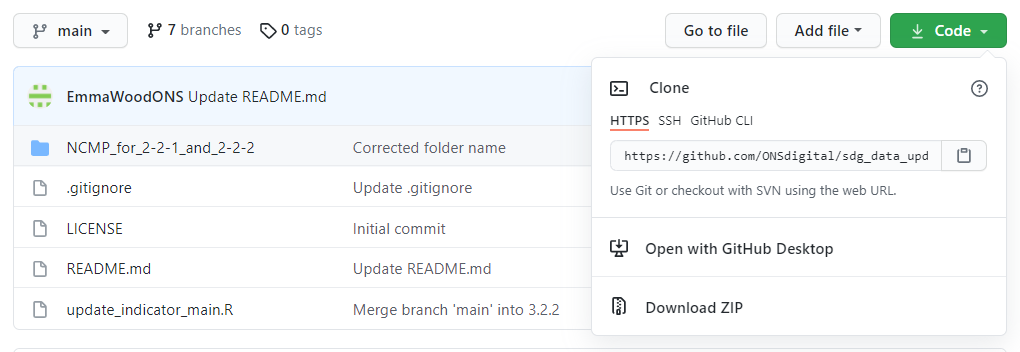
git clone https://github.com/ONSdigital/sdg_data_updates.git(from the Code dropdown shown in the image above).- A pop-up will appear. The ‘password’ it asks for is the personal access token that you created in step 1.
- Alternatively, go to the desired directory, right-click and choose 'Git Bash here'. You can then skip the
cd D:/coding_reposstep, as Bash will open in that directory.- Once you have cloned the repository, in order to access the main branch you need to navigate to the cloned folder that will now appear in your coding_repos. Use
cd sdg_data_updates. You should now see (main) in blue colour at the end of the directory line.
There are several ways to move files between your local repository (on your laptop) and the online repository. All the instructions below are given for both Git GUI and Git bash, but you need only use one.
Every new indicator automation requires it's own branch. Do not work on code in a branch that already exists for another indicator.
- Fetch the most recent version of the repo from Github
use the fetch command and then pull command if "fetch" suggests that your branch is not up to date.
You can also usegit pullstraight away without "fetching first". Performing a pull will automatically perform a fetch command first, but use fetch on its own to understand what has changed on the remote repo (if anything):
git fetch
git pull
- Create a new branch for the indicator you want to work on
Make sure you are on the main branch - you should see (main) at the end of the directory line. You can also try the command
git branchto see a list of available branches on your local repo, and there will be a green star next to the one you are currently on. If you're not on main, switch to it:git checkout mainNext, create a new branch with a suitable name - the indicator number:
git checkout -b x-x-x(-b suffix means you're creating a new branch and the checkout command automatically puts you on it after its creation)If you ever need to delete a branch you created, use the command
git branch -d x-x-x. You may need to use capital -D if you have made any changes on that branch (it will delete the branch regardless, so only use it if you're sure it's ok to be deleted)
- Create a new folder for the indicator, using the indicator name (x-x-x) as the folder name (use dashes to separate numbers)
- If the source data needs to be downloaded manually (i.e. when there is not a predictable link), create a folder called 'Input' and save the data in this folder. Note that this will NOT be uploaded to Github (see point 7 below).
- Start writing your indicator update automation. Hint: Start with the template code in the templates folder.
- Make regular commits to Github, so that others can pick up your changes, and so you can roll back to an earlier version if it all starts to go pear-shaped.
git statusto check if you have any unstaged or uncommitted changes. Unstaged files with changes will be listed in red.Before committing, you need to add files for staging (tracking), then the commit will only include those files. To stage all new files for tracking (recommended):
git add .( . means "everything")You can then commit the tracked files, and must add a short informative message:
git commit -m "Adding information on Git Bash to Contributing instructions"Push the committed changes to update the remote repo on GitHub for the respective branch. If this was a branch you created locally and it's the first tme you are pushing to the remote repo, use:
git push -u origin x-x-xIf you go on GitHub now, you will see your local branch is now listed as part of the existing branches, and your commit message should be visible next to the file(s) you changed.
You can just use
git pushfrom now on, when you are on the same branch locally (but always followinggit add .andgit commit -m "message"first).
- Add example input to the Example_Input folder, and write an example_config file. Use these to create example output. The example data should not include all data. For example, delete any tabs in the input excel that are not used for the indicator. If there are multiple years of data you may choose to keep only one or two years in the file. If there is a disaggregation with a lot of levels (e.g. Local Authority) keep rows only for some of the levels. This is so we don't end up storing lots of large files in the repo.
- Write a README file. This should be aimed at someone who is unfamiliar with the indicator. It must include all the information that will need to know to successfully update the data. Include instructions on where to find the input data, and any other instructions specific to the indicator. Explain what to do to switch between running example data and real data. Note anything that you suspect may be an issue in future runs, or things that need to be checked in the QA. Explain any important decisions you made.
- Before automations are available to the team they need to be merged into the main branch using a pull request on Github:
Pull requests > New pull request
Set base and compare branches
Create pull request
Request review using the panel on the right. This is required before a merge to main can be completed. Use a template so that there is a history of what has been checked.
If you want to make changes to an existing automation, unless it is a cosmetic change e.g. to the readme, please create a new branch for your changes.
Edits to existing automations will follow a similar process to new automations.
- Create a new branch with a meaningful name (e.g. 3-2-2_age_bugfix) from the relevant branch (this will probably be main but may be a feature branch that you don't want to accidentally mess up).
- Make regular, meaningful commits.
- Make any necessary changes to the example files.
- Update the README file (may not be required).
- Merge back into the original branch. If you are merging into main code review is required. If you are merging into your own branch you may want to skip this step, however if you are merging into a colleagues code, please request review/sign-off before merging.
Before indicator automations can be merged into the main branch, they must be reviewd. More comprehensive instructions for review are given in the guidance folder on Sharepoint.
Please use the template below as the basis for your review - copy and paste it into the conversation and make comments on all relevant sections. This template is based on the on the Quality Assurance of Code for Research Analysis template.
##  Code review

#### Documentation

Any new code includes all the following forms of documentation:

- [ ] README file for the indicator
- [ ] Example input and output that run successfully locally.

If the code includes functions, or is a function/set of functions for SDGupdater:
- [ ] **Function Documentation** as docstrings within the function definition.
- [ ] **Examples** demonstrating major functionality, which runs successfully locally.

#### Functionality

- [ ] **Installation**: Installation or build of the code succeeds.
- [ ] *Guidelines**: New code conforms to the project contribution
  guidelines.
- [ ] **Example data**: Example output generated using the example input matches the given example output.
- [ ] **csv formatting**: The csv output is correct, given general guidance for csvs (e.g. columns are in
a logical order, values within columns are in the correct order, sentence case is used, correct terms are
used (i.e. ar in the data dictionary), observation status column is correctly filled in).

If the code includes functions, or is a function/set of functions for SDGupdater:
- [ ] **Automated tests**: Unit tests cover essential functions for a reasonable range
  of inputs and conditions. All tests pass on your local machine.


#### Final approval (post-review)

The author has responded to my review and made changes to my satisfaction.
- [ ] **I recommend merging this request.**

Estimated time spent reviewing: #

---

### Review comments

*Insert detailed comments here!*

These might include, but not exclusively:

- bugs that need fixing (does it work as expected? and does it work with other code
  that it is likely to interact with?)
- alternative methods (could it be written more efficiently or with more clarity?)
- documentation improvements (does the documentation reflect how the code actually works?)
- additional tests that should be implemented (do the tests effectively assure that it
  works correctly?)
- code style improvements (could the code be written more clearly?)

Your suggestions should be tailored to the code that you are reviewing.
Be critical and clear, but not mean. Ask questions and set actions.
Timely reviews are important as it will be easier for you to fix any bugs while the indicator is fresh in your mind.
Once your code has passed review it can be merged into main. Whenever the main branch is changed it must be pulled down into the repostiory clone in Jemalex.
IMPORTANT NOTE: We are currently experiencing some issues with anyone being able to update the branch on Jemalex - there seems to be a permissions problem and only the person who cloned it can currently update. Until this is resolved, please let Atanaska Nikolova know that you have had an approved automation merged into the main branch. Atanaska will then be able to update the automation folder on Jemalex. Ignore the instructions until the end of this section
- Using Git Bash:
Navigate to Jemalex/sdg_data_updates folder
Right click > Git Bash here. Make sure you're on the (main) branch
git fetchto check if/what changes there are relative to the remote "main" repo
git pull origin mainto merge the changes from the remote "main" to the local "main"Check that you can see the expected changes in Jemalex/sdg_data_updates folder
When you try to pull you may get "error: cannot pull with rebase: You have unstaged changes. error: please commit or stash them." If this happens, using Git Bash:
git statusto see what the unstaged changes are. The ONLY thing that we expect to have changed on the Jemalex repo clone is update_indicator_main.R. If anything else is listed please check with the team to see if any changes they made need to be saved elsewhere. Once any necessary saves are done you can continue
git restore update_indicator_main.Rif this is the only thing listed
git restore .if there is more and you dont want to type them all out.
If a function is likely to be useful for other updates, please add it to the SDGupdater package.
Functions must be fully documented (using roxygen2) and have comprehensive unit tests.
Before you request a review of changes/additions to the SDGupdater, please check that all unit tests pass.
The code below can be used to create the documentation files from the information in the function file, install the package and run all unit tests:
library(devtools)
library(roxygen2)

setwd("D:\\coding_repos\\sdg_data_updates\\SDGupdater")
# update documentation
document()

# install the package
setwd("..")
install("SDGupdater")

# run tests
devtools::test("SDGupdater")
Most people will use Git bash, so those instructions are given throughout this document. The equivalent processes in Git GUI are given below, though without some of the surrounding text):
Open Git GUI
Click on 'clone existing repository'
In the sdg_data_updates repo on Github go to the main branch, then click on the Code dropdown and copy the https link (see image below).
Paste this link into the 'Source Location' field in Git GUI
In the 'Target Directory' field navigate (using Browse) to the folder you just created.
Add '/sdg_data_updates' to the end of the filepath in the 'Target Directory' field
Clone
You may be prompted for a password. Use the token you created in step 1.
You are now ready to get started!
- Fetch the most recent version of the repo from Github
Remote > Fetch from > origin
- Create a new branch for the indicator you want to work on
Checkout the branch you want to create the new branch from (this will usually be main) Branch > Checkout branch > seelct 'Tracking branch' then the one you want to checkout (main)
Branch > Create
Name the new branch (usually with the indicator number)
Starting Revision should be set to Tracking Branch > main by default - you do not need to change this
Create
- Create a new folder for the indicator, using the indicator name (x-x-x) as the folder name (use dashes to separate numbers)
- Start writing your indicator update automation. Hint: Start with the template code in the templates folder.
- Make regular commits to Github, so that others can pick up your changes, and so you can roll back to an earlier version if it all starts to go pear-shaped.
-
In Git GUI:
Make sure you are in the right branch by looking at Current branch (in the top left of the window just below the menu bar). If current branch is not correct, go to Branch > Checkout
Click Rescan to pickup any changes
Changed files are displayed in the Unstaged changes panel. You can click on these to see details.
To move them down into the Staged changes panel click on the file icon to the left of the filename in the Unstaged changes panel
Write a meaningful commit message. The first line is the title - keep this quite short. Hit enter twice then enter further details e.g. was it a bug fix/ progress on a certain aspect of the code?
Commit
Push (make sure you are pushing to the right branch)
- Add example input to the Example_Input folder, and write an example_config file. Use these to create example output. The example data does not have to include all data. For example, delete any tabs in the input excel that are not used for the indicator. If there are multiple years of data you may choose to keep only one or two years in the file. If there is a disaggregation with a lot of levels (e.g. Local Authority) keep rows only for some of the levels. This is so we don't end up storing lots of large files in the repo.
- Write a README file. This should be aimed at someone who is unfamiliar with the indicator. It must include all the information that will need to know to successfully update the data. Include instructions on where to find the input data, and any other instructions specific to the indicator. Explain what to do to switch between running example data and real data. Note anything that you suspect may be an issue in future runs, or things that need to be checked in the QA. Explain any important decisions you made.
- Before automations are available to the team they need to be merged into the main branch using a pull request on Github:
Pull requests > New pull request
Set base and compare branches
Create pull request
Request review using the panel on the right. This is required before a merge to main can be completed. Use a template so that there is a history of what has been checked.
Open Git GUI and select
Open Existing RepositorySelect the Jemalex/sdg_data_updates folder
Remote>Fetch from>originCheck that you can see the expected changes in Jemalex/sdg_data_updates folder