


- General Info
- Subscribing and unsubscribing
- Events
- Test event
- Model loaded/unloaded
- Lost/Found tracking
- Background changed
- Model config modified
- Model moved/resized/rotated
- Model outline changed
- Hotkey triggered
- Expression Activated/Deactivated event
- Animation event triggered
- Item event
- Model clicked event
- Post-processing event
- Live2D Cubism Editor connected event
- Track custom point on ArtMesh event
- Track ArtMesh outline event
Using the VTube Studio Event API, you can subscribe to various events to make sure your plugin gets a message when something happens in VTube Studio. That way, you can for example get notified every time a hotkey is activated, a model/item is loaded/unloaded, the model is clicked and much more.
To receive events of a certain type, you have to subscribe to them. When you don't want to receive events anymore, you have to unsubscribe from that event or all events. When your plugin disconnects from the VTube Studio API, all events your plugin session is subscribed to are automatically unsubscribed as well.
You can subscribe to specific events to get notified every time the event occurs. You subscribe using the EventSubscriptionRequest, which will return an EventSubscriptionResponse if successful. Once subscribed, you will receive a message every time the event is triggered.
If you subscribe to an event multiple times, the new config you provide will overwrite the old config. You can also unsubscribe multiple times or unsubscribe from an event you're not subscribed to. This will return successfully (no error) but will do nothing.
The following chart explains the subscription/event flow:

You can also unsubscribe at any time if you no longer wish to receive the events.
The request to subscribe/unsubscribe looks like this: (here with the ModelLoadedEvent as an example)
REQUEST
{
    "apiName": "VTubeStudioPublicAPI",
    "apiVersion": "1.0",
    "requestID": "SomeID",
    "messageType": "EventSubscriptionRequest",
    "data": {
        "eventName": "ModelLoadedEvent",
        "subscribe": true,
        "config": {

        }
    }
}
In the eventName field, pass in the name of the event you want to subscribe to. Set subscribe to true if you want to subscribe to the event or false if you want to unsubscribe from it. If you set subscribe to false, you can also leave out the eventName field (or leave it empty) to unsubscribe the current plugin session from all events.
Some events offer extra configuration parameters, which you can specify in the config part of the payload. Different events require different parameters there, some may be optional.
The response will contain the number and list of now subscribed events for this plugin session.
If the event type you tried to subscribe to or unsubscribe from is unknown, an error will be returned insted. If any of the config parameters you provided for the specific event are invalid, there will also be an error. All possible error IDs are listed on the page ErrorsID.cs. Errors related to specific event configs have an offset of 100000, as you can see on that page.
RESPONSE
{
    "apiName": "VTubeStudioPublicAPI",
    "apiVersion": "1.0",
    "timestamp": 1625405710728,
    "requestID": "SomeID",
    "messageType": "EventSubscriptionResponse",
    "data": {
        "subscribedEventCount": 2,
        "subscribedEvents": [
            "TestEvent",
            "ModelLoadedEvent"
        ]
    }
}The following sections describe all available events in detail. For a more compact list of all currently available events, please check the "Contents" section at the top of this page.
The payloads listed here only have the relevant section for the event (the config part). Some events do not have any config. For those, you can either leave the config section empty or leave it out of the payload altogether.
An event for testing the event API.
You can pass in a string in testMessageForEvent (optional). It has to be 32 characters or shorter, otherwise an error will be returned (you can use this to test event error handling).
When you're subscribed to this event, the string you provided will be returned every second along with a counter that counts the seconds since VTube Studio has been started (so the counter will be increased by 1 in every event message).
Keep in mind that you can subscribe with a message in testMessageForEvent and then subscribe with a different message. This will overwrite the old config and you should receive the new message.
CONFIG
"eventName": "TestEvent",
"config": {
    "testMessageForEvent": "text the event will return"
}
This is what you will receive every time the event is triggered (once a second).
The outer payload will be omitted for the other event payload examples.
EVENT
{
    "apiName": "VTubeStudioPublicAPI",
    "apiVersion": "1.0",
    "timestamp": 1625405710728,
    "requestID": "SomeID",
    "messageType": "TestEvent",
    "data": {
        "yourTestMessage": "text the event will return",
        "counter": 672
    }
}An event that is triggered every time a VTube Studio model is loaded or unloaded.
You can pass in one or more model IDs in the modelID array (optional). If you do, an event will only be sent every time the model with one of the specific IDs is loaded or unloaded. If you pass in model IDs, they all have to have the correct format (32 characters, only hex characters), otherwise an error is returned.
CONFIG
"eventName": "ModelLoadedEvent",
"config": {
    "modelID": [
      "OPTIONAL_model_ID_to_filter_for",
      "OPTIONAL_some_other_model_ID_to_filter_for"
    ]
}
The event will be triggered every time a model (or one of the specified models) is loaded or unloaded. Depending on wether it was loaded or unloaded, modelLoaded will be true or false.
EVENT
"messageType": "ModelLoadedEvent",
"data": {
    "modelLoaded": true,
    "modelName": "My VTS Model Name",
    "modelID": "165131471d8a4e42aae01a9738f255ef"
}An event that is triggered every time the face tracker finds/loses the face or hands.
CONFIG
"eventName": "TrackingStatusChangedEvent",
"config": { }
Every time the face or left hand or right hand is found/lost, an event message like this will be sent:
EVENT
"messageType": "TrackingStatusChangedEvent",
"data": {
    "faceFound": true,
    "leftHandFound": false,
    "rightHandFound": false
}An event that is triggered every time the background is changed by the user (manually or via hotkey).
CONFIG
"eventName": "BackgroundChangedEvent",
"config": { }
The event will contain the background name (backgroundName field), as shown in the background selection list. This is typically the file name without the file extension.
EVENT
"messageType": "BackgroundChangedEvent",
"data": {
    "backgroundName": "my_cool_background"
}An event that is triggered every time the user manually changes the the settings/config of the currently loaded VTube Studio model. If the changed config is related to hotkeys, hotkeyConfigChanged will be true in the event payload.
CONFIG
"eventName": "ModelConfigChangedEvent",
"config": { }
EVENT
"messageType": "ModelConfigChangedEvent",
"data": {
    "modelID": "UniqueIDToIdentifyThisModelBy",
    "modelName": "My Cool Model",
    "hotkeyConfigChanged": true
}An event that is triggered every time a model is moved, resized or rotated. This will also be triggered right after subscribing, so it will send you the current position/scale/rotation of the currently loaded model the moment you subscribe (unless no model is loaded) and then send the current position/scale/rotation in every frame when there's a change.
CONFIG
"eventName": "ModelMovedEvent",
"config": { }
The modelPosition object in the response contains the model position (positionX and positionY), the model size (size) and the model rotation (rotation). This is the exact same object that you receive by polling the CurrentModelRequest, so please check that request for how to interpret the modelPosition data (see here).
For more info about this data and the VTube Studio coordinate system, please check this link.
EVENT
"messageType": "ModelMovedEvent",
"data": {
    "modelID": "UniqueIDToIdentifyThisModelBy",
    "modelName": "My Cool Model",
    "modelPosition": {
        "positionX": -0.20491,
        "positionY": 0.1,
        "size": -74.49664306640625,
        "rotation": 341.3
    }
}An event that is triggered at a constant 15 FPS and sends subscribed plugins the model outline. Specifically, it sends an approximated convex polygon based on the bounding-box center points of all (visible) ArtMeshes in the model. If no model is loaded, the event isn't sent.
This makes it possible for plugins to track the model extents within the window somewhat accurately.
You can pass in the "draw" parameter as true (default if not provided is false) to actually draw the outline polygon in VTube Studio. Drawing the outline in VTube Studio may not be performant so you should only do that for debugging purposes or to show the outline to the user for setup purposes. The outline will be drawn if at least one subscribed plugins has set "draw" to true.
If you turn on the outline, it will be rendered like this:

CONFIG
"eventName": "ModelOutlineEvent",
"config": {
    "draw": false
}
You will receive the following event 15 times per second.
The "convexHull" list contains 2D points describing the rough outline of the model. This list is ordered. The x/y coordinate of each point is it's position within the VTube Studio window, as shown in the picture below. X or Y coordinates may be bigger than 1 or smaller than -1 if an outline point is outside of the window boundaries.
The "convexHull" list is guaranteed to have at least 3 entries. There is no limit to how many entries it can have, but for most normal Live2D models, it has between 5 and 25 entries. Please also keep in mind that the number of list entries can (and will most likely) change between events you receive. Do not implement your plugin expecting the number of outline points to remain constant.
The "convexHullCenter" parameter is the center/average of all the "convexHull" points.
Additionally, the "windowSize" parameter contains the current VTube Studio window size.

EVENT
"messageType": "ModelOutlineEvent",
"data": {
    "modelName": "My VTS Model Name",
    "modelID": "165131471d8a4e42aae01a9738f255ef",
    "convexHull": [
        {
            "x": 0.200516939163208,
            "y": 0.8014626502990723
        },
        {
            "x": 0.5141212940216064,
            "y": -0.297398179769516
        },
        {
            "x": 0.28484871983528137,
            "y": -1.1670516729354858
        },
        {
            "x": 0.1435088962316513,
            "y": -0.30985555052757263
        },
        {
            "x": 0.5271111130714417,
            "y": 0.7104558944702148
        },
        {
            "x": 0.28484871983528137,
            "y": -1.1670516729354858
        },
        {
            "x": 0.5141212940216064,
            "y": -0.297398179769516
        }
    ],
    "convexHullCenter": {
        "x": 0.3527252674102783,
        "y": -0.24669097363948822
    },
    "windowSize": {
        "x": 1920,
        "y": 1080
    }
}An event that is triggered every time a hotkey is triggered manually by the user (keyboard/hand-gesture) or via the hotkey-trigger-API.
You can pass in the "onlyForAction" parameter (optional). Valid values are the hotkey actions listed here: "HotkeyActions.cs".
If you provide that parameter, only hotkeys of the provided type (with the given action) will trigger this event. Otherwise, all hotkey activations will trigger the event.
If you do not want to receive events when a hotkey is triggered by a plugin via the trigger-hotkey-API, you can pass in ignoreHotkeysTriggeredByAPI as true.
The event is also triggered when a hotkey is triggered for a Live2D item.
CONFIG
"eventName": "HotkeyTriggeredEvent",
"config": {
    "onlyForAction": "ToggleExpression",
    "ignoreHotkeysTriggeredByAPI": false
}
EVENT
"messageType": "HotkeyTriggeredEvent",
"data": {
    "hotkeyID": "21bf7ade9e664f3ec29d05156e4ce5c1",
    "hotkeyName": "Eyes Cry",
    "hotkeyAction": "ToggleExpression",
    "hotkeyFile": "EyesCry.exp3.json",
    "hotkeyTriggeredByAPI": false,
    "modelID": "d8ee771d2909873b1aa0226d03ef4f51",
    "modelName": "Akari",
    "isLive2DItem": false
}An event that is triggered every time an expression is turned on/off for the main model or for Live2D item models.
This event is triggered regardless of the reason why the expression was toggled. Reasons include:
- Expression manually turned on/off by user using hotkey or via the expression on/off UI.
- Expression turned off using a "turn all expressions off" hotkey.
- Expression toggled on/off via the API.
If you want to receive events for Live2D items in addition to the main model, make sure set ignoreLive2DItems is set to false. Events for Live2D items will be marked in the event via the isLive2DItem flag.
If you want to know the initial expression state, you can pass in sendAllActiveStatesOnSubscription as true. That will trigger the event once right after subscribing for every single expression of the main model (if one is loaded) and (if requested) all loaded Live2D items. That includes all expressions, even the ones that are currently off, so you can build an initial expression state for the model and track any changes from there using subsequent events. These events will be marked with justLoaded set to true (full model expression state snapshot).
Additionally, when a model or Live2D item is loaded, you will instantly receive events for all expressions that model contains so you can build an initial state. These events will also be marked with justLoaded set to true (full model expression state snapshot).
Note: That means if your model has 100 expressions, you'll instantly receive 100 events just after subscribing (or when loading the model)
For Live2D items, the itemInstanceID will contain their item instance ID. This lets you distinguish between multiple Live2D items that may have the same modelID. For main models, itemInstanceID will be an empty string.
The expressionName is just the expressionFile but without the .exp3.json file extension.
CONFIG
"eventName": "ExpressionToggledEvent",
"config": {
    "sendAllActiveStatesOnSubscription": true,
    "ignoreLive2DItems": false
}
EVENT
"messageType": "ExpressionToggledEvent",
"data": {
    "modelID": "d8ee771d2909873b1aa0226d03ef4f51",
    "modelName": "Akari",
    "isLive2DItem": false,
    "itemInstanceID": "",
    "justLoaded": false,
    "expressionFile": "EyesCry.exp3.json",
    "expressionName": "EyesCry",
    "active": true
}An event that is triggered every time there's an animation-event encountered in an animation playing for any Live2D model in the scene (so for the main model and any Live2D items).
The following animation-events will trigger this event:
Start: An event is triggered when an animation starts (idle-animations or normal one-time animations)End: An event is triggered when an animation ends (idle-animations or normal one-time animations)Custom: An event is triggered when a custom event is encountered in the animation. These events can be added at any point in the animation when creating animations in the Live2D Cubism Animation Editor. You can find more details about how to create/use those events below.
These events will be triggered for normal one-time animations and for idle animations. If an animation is stopped because the model playing it is unloaded, no event is triggered.
If you don't want to receive events triggered by animations in Live2D items, set ignoreLive2DItems to true. If you don't want to receive events triggered by any idle animations, set ignoreIdleAnimations to true.
CONFIG
"eventName": "ModelAnimationEvent",
"config": {
    "ignoreLive2DItems": false,
    "ignoreIdleAnimations": false
}
The animationEventType field contains the source of the event. Possible values are Start (an animation started), End (an animation ended) and Custom. For idle animations, the start/end events will continuously trigger as the animation loops. The Custom events are explained in more detail below.
animationEventTime is the time in seconds within the animation when the animation-event was encountered. It's between 0 and animationLength, which is the length of the animation in seconds.
animationName contains the filename of the animation.
If isIdleAnimation is true, the event was triggered within an idle-animation. If it's false, the event was triggered within a normal one-time animation.
EVENT
"messageType": "ModelAnimationEvent",
"data": {
    "animationEventType": "Custom",
    "animationEventTime": 0.423317,
    "animationEventData": "My Test Event 123456789",
    "animationName": "event_test_anim_4_final.motion3.json",
    "animationLength": 1.6670000553131104,
    "isIdleAnimation": false,
    "modelID": "4a7b131d2394f7ae61b0226d00ef471e",
    "modelName": "Akari",
    "isLive2DItem": false
}Custom animation events can be used to trigger an event to be sent every time an animation reaches a certain timestamp. This works in idle-animations and normal one-time animations.
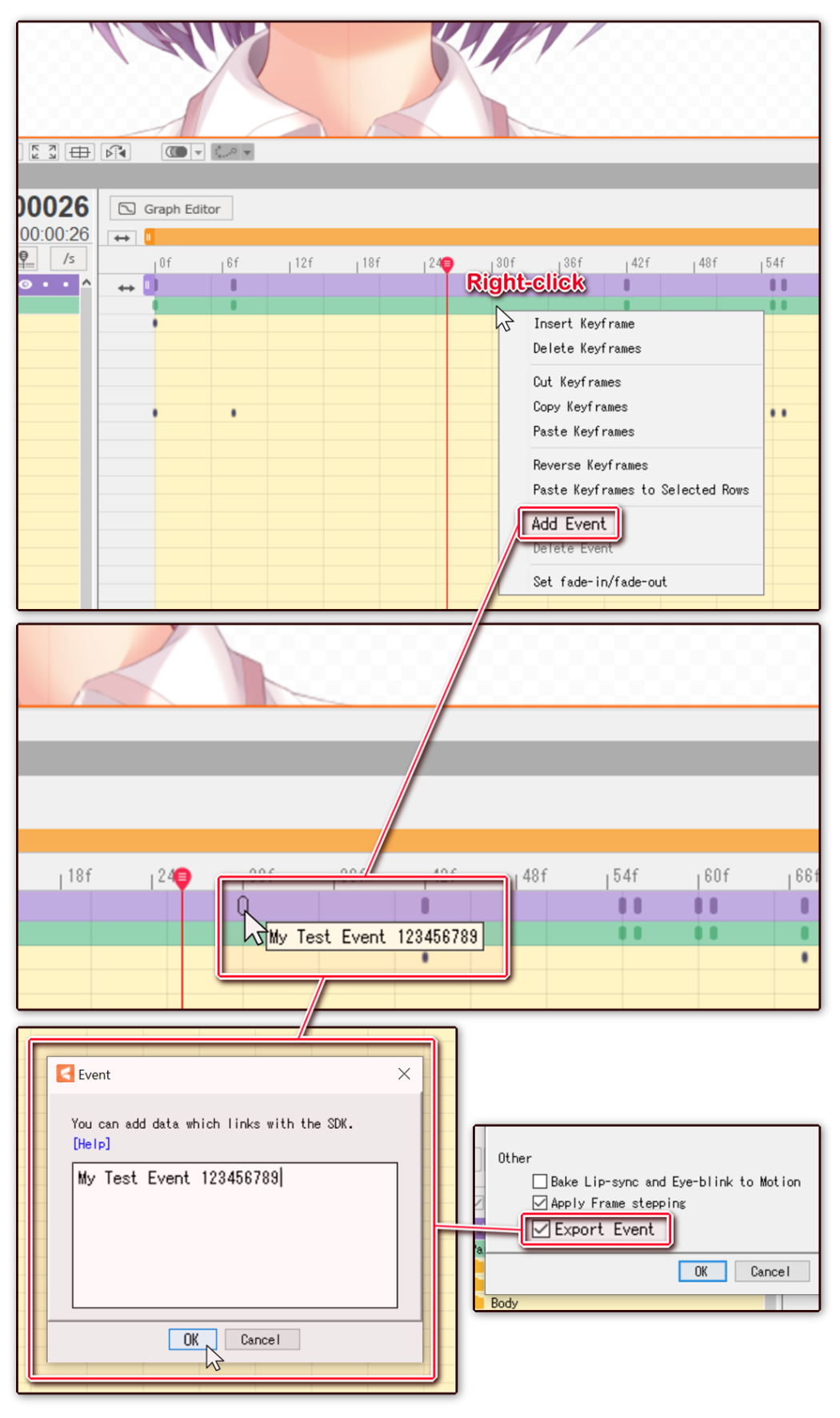
These events can be added in the Live2D Cubism Animation Editor when creating animations by right-clicking anywhere in the timeling and selecting "Add Event". From there, you can enter text that will be associated with this event and can be used to identify it. This text will be returned in the animationEventData parameter when the animation-event is encountered during animation playback.
The text can be up to 256 characters. If the text is longer, the event will not work (it will be ignored). Also, events outside the animation timeline will be ignored (for example if you place the event 1 second after the animation ends).
You also cannot use Anim_Start or Anim_End as text because those are reserved keywords for the animationEventData parameter for the events triggered by an animation starting/ending.
When exporting an animation with custom animation events, make sure you have enabled "Export Event" on the animation export dialog in the Live2D Cubism Animation Editor.
The following graphic explains all steps required to create an animation event.
An event that is triggered every time certain actions are done with/by an item. The item is identified by its itemInstanceID.
There are two arrays you can pass in (optional):
itemInstanceIDs: If you pass in a list of item IDs, items with non-matching IDs will not trigger the event.itemFileNames: If you pass in a list of item filenames, items with non-matching filenames will not trigger the event. This does "contains-matching", so for example if you pass in"my", it will match the itemmy_item.png
If you don't pass in the lists or both lists are empty, all items will trigger events. If you pass in both lists, items will trigger events if they match one list or the other.
The following item event types are currently supported and will be returned in the itemEventType field:
Added: Item was added to the scene.Removed: Item was removed from the scene.DroppedPinned: Item was dropped on the model and is now pinned.DroppedUnpinned: Item was dropped but not on the model. It is now unpinnedClicked: Item was clicked.Locked: Item was locked.Unlocked: Item was unlocked.
CONFIG
"eventName": "ItemEvent",
"config": {
    "itemInstanceIDs": [ "some_item_instance_id_to_match" ],
    "itemFileNames": [ "some_filename_to_match", "some_other_filename_to_match.gif" ]
}
The event contains the item instance ID, item file name (including extension if applicable) and the item position in the usual coordinate system.
EVENT
"messageType": "ItemEvent",
"data": {
    "itemEventType": "ItemClicked",
    "itemInstanceID": "3dcfc2456ac94a37bad369ec1875a15b",
    "itemFileName": "my_item.png",
    "itemPosition": {
        "x": -0.34229445457458496,
        "y": 0.515410304069519
    }
}An event that is triggered every time the model is clicked. Depending on the config, it is also triggered when you click anywhere in the VTS window even if the click wasn't on the model.
This contains detailed information on where exactly the model was clicked.
CONFIG
"eventName": "ModelClickedEvent",
"config": {
    "onlyClicksOnModel": true
}
modelLoaded will be true if a model is currently loaded. If one is loaded, loadedModelID will contain its ID and loadedModelName will contain the name.
mouseButtonID is the ID of the mouse button. 0 is left-click, 1 is right-click and 2 is middle-click (mouse-wheel click). clickPosition is the position of the click in the usual coordinate system. If you need the exact pixel position of the click, you can use windowSize (current VTS window size in pixels) to calculate that.
If the model was clicked, the number of ArtMeshes at the click position will be returned in the clickedArtMeshCount field. The artMeshHits array will contain the details of each of those ArtMeshes, including where exactly they were clicked at vertex-level within the mesh. You can use that data to pin items at that position using the ItemPinRequest. This array could contain a lot of ArtMeshes since many ArtMeshes might be stacked at one given position of the model.
Note: You can ignore the angle and size fields for now. They might be relevant in the future but have no purpose at the moment.
Each ArtMesh hit contains info about where that ArtMesh was clicked. artMeshOrder is the order in the ArtMesh stack at the click position. The topmost ArtMesh at the click position will have "artMeshOrder": 0. This would be the ArtMesh that items pin to when dropped by users at that exact position.
The exact click position within the ArtMesh is given via the vertexID1, vertexID2, vertexID3, vertexWeight1, vertexWeight2, vertexWeight3 fields as barycentric coordinates. In short, VTS checks which specific triangle was clicked in the ArtMesh and returns the three vertex IDs that make up this triangle, including the weights that if multiplied with the vertex positions will result in the exact click position within the triangle.
The ArtMesh ID and barycentric coordinates can be used to identify an exact position on the model and can be used to pin an item at that position using the ItemPinRequest.
EVENT
"messageType": "ModelClickedEvent",
"data": {
    "modelLoaded": true,
    "loadedModelID": "d87b771d2902473bbaa0226d03ef4754",
    "loadedModelName": "Akari",
    "modelWasClicked": true,
    "mouseButtonID": 0,
    "clickPosition": {
        "x": -0.15343914926052094,
        "y": 0.34593725204467773
    },
    "windowSize": {
        "x": 2268,
        "y": 1243
    },
    "clickedArtMeshCount": 2,
    "artMeshHits": [
        {
            "artMeshOrder": 0,
            "isMasked": false,
            "hitInfo": {
                "modelID": "d87b771d2902473bbaa0226d03ef4754",
                "artMeshID": "hair_right6",
                "angle": 130.80455017089844,
                "size": 1.0,
                "vertexID1": 80,
                "vertexID2": 76,
                "vertexID3": 75,
                "vertexWeight1": 0.4725686013698578,
                "vertexWeight2": 0.07506437599658966,
                "vertexWeight3": 0.45236700773239136
            }
        },
        {
            "artMeshOrder": 1,
            "isMasked": true,
            "hitInfo": {
                "modelID": "d87b771d2902473bbaa0226d03ef4754",
                "artMeshID": "face_skin",
                "angle": 63.90638732910156,
                "size": 1.0,
                "vertexID1": 75,
                "vertexID2": 71,
                "vertexID3": 70,
                "vertexWeight1": 0.3965734839439392,
                "vertexWeight2": 0.06637920439243317,
                "vertexWeight3": 0.5370473265647888
            }
        }
    ]
}An event that is triggered every time the post-processing system is turned on/off or a preset is loaded/unloaded. For more information about post-processing, check the visual effects page.
If after receiving this event you want to read the detailed post-processing state including all configs and their values use the PostProcessingListRequest and if you want to send post-processing values, use the PostProcessingUpdateRequest.
CONFIG
"eventName": "PostProcessingEvent",
"config": { }
EVENT
"messageType": "PostProcessingEvent",
"data": {
    "currentOnState": true,
    "currentPreset": "my_preset"
}VTube Studio can communicate directly with the Live2D Cubism Editor, which is used to create Live2D models. For more info on how that works, check the page "Live2D Cubism Editor Communication".
When fully connected, VTube Studio can send tracking data directly to Live2D, which makes testing angles/physics during rigging easier. The following fields are sent:
tryingToConnect: Is VTube Studio trying to connect to Live2D Cubism? True if theConnecttoggle is turned on in VTS.connected: Is VTube Studio fully connected to and authenticated with Live2D Cubism?shouldSendParameters: Has the user turned on theSend parameterstoggle? If this is on andconnectedis true, VTube Studio is actively sending parameter data into Live2D Cubism.
When VTube Studio is actively sending parameter data into Live2D Cubism, plugins can also send parameter data to VTube Studio which will then be passed on to Live2D Cubism.
Note: This event is triggered every time the Connect/Send parameters toggles are toggled by the user and every time the connection state with the Live2D Cubism API changes. Additionally, the event is also sent exactly once when you first subscribe to the event. That way, you can easily get the initial state.
CONFIG
"eventName": "Live2DCubismEditorConnectedEvent",
"config": { }
EVENT
"messageType": "Live2DCubismEditorConnectedEvent",
"data": {
    "tryingToConnect": true,
    "connected": true,
    "shouldSendParameters": false
}An event that tracks one or more specific points on ArtMeshes (model layers) in real-time and returns their position, rotation, size and visibility at a configurable frequency. Works for the main model only (no Live2D items or other VNet collab participant models).
This is useful for plugins that need to track specific parts of a model over time, for example to attach overlays, effects or other visuals to a precise point on the model's mesh.
Each tracking point is defined by a set of barycentric coordinates within a specific ArtMesh, the same format used by ModelClickedEvent. This means you can use the click event to find a point on the model you're interested in and then directly use those coordinates to subscribe to this event so that point is tracked over time.
You can subscribe to up to 500 tracking points per plugin session. Tracking all 500 points simultaneously is technically possible but may have a performance impact, so use only as many as your plugin actually needs. Unsubscribing from the event or disconnecting from the API will remove all tracking points.
You can subscribe to points on models that aren't currently loaded. No event will fire until the model is actually loaded. Then, if the given point was found on the model, the event will start firing while the model is loaded.
Each entry in the trackingPoints array describes one point to track. When changing the subscribed points or adding/removing ones, you always have to send the full config with all points you want to track.
trackingPointID: A unique string ID you assign to this tracking point (max. 128 characters). This ID is used to identify the point in event payloads.artMeshCoords: The barycentric coordinates that describe the exact position on the ArtMesh. This is the samehitInfostructure returned byModelClickedEvent, so you can get valid coordinates to use for this by clicking on the model while subscribed to that event.modelID: The ID of the model this tracking point belongs to (max. 128 characters).artMeshID: The ID of the ArtMesh (max. 128 characters).vertexID1,vertexID2,vertexID3: The three vertex IDs of the triangle to track. Must be non-negative.vertexWeight1,vertexWeight2,vertexWeight3: Barycentric weights for each vertex. Must sum to1.0(within a tolerance of0.01).angle: The base angle for the attached tracking point (explained further below).size: The base size value for the attached tracking point (explained further below). Must be greater than0and at most10000.
visualize: Iftrue, a visualizer circle will be shown at the tracked position in VTube Studio. Useful for debugging and finding the right base size and base angle. Can be toggled by re-subscribing with a new config that only changes this flag.
The frequency parameter controls how many times per second the event is sent. Must be between 1 and 60 (inclusive).
All trackingPointID values within a single subscription must be unique.
Other than just tracking a position, this event also lets you track angle and size changes over time. For that, you define a base angle and base size, which will set the area the point will cover on the attached model and the base rotation relative to the three vertices.
This is important so whenever the tracking point is attached to the model, it doesn't matter what scale it currently is at or how the ArtMesh is rotated/deformed: the point will always attach in the exact same way as long as these values are kept the same.
To find the right angle and size, repeatedly re-subscribe to the event with different values for these parameters with visualize set to true until the visualizer circle covers the right area of the ArtMesh and the angle is properly zero-aligned the way you want it.
Then, when you receive an event, the angle in that payload will be the delta of the angle shown by the visualizer compared to the bottom edge of the window. And the size will be the size of the visualizer in VTube Studio coordinate system units based on the window height, so a size of 2 would mean the visualizer circle spans exactly the whole window from top to bottom (from y=1 to y=-1).
This makes it possible to track areas on the model over time with high precision.

CONFIG
"eventName": "ArtMeshTrackingEvent",
"config": {
    "frequency": 30,
    "trackingPoints": [
        {
            "trackingPointID": "Tracked Point on Hair",
            "artMeshCoords": {
                "modelID": "d87b771d2902473bbaa0226d03ef4754",
                "artMeshID": "hair_right6",
                "vertexID1": 80,
                "vertexID2": 76,
                "vertexID3": 75,
                "vertexWeight1": 0.4725686013698578,
                "vertexWeight2": 0.07506437599658966,
                "vertexWeight3": 0.45236700773239136,
                "angle": 0.0,
                "size": 1.0
            },
            "visualize": false
        },
        {
            "trackingPointID": "Some other tracked point 12345",
            "artMeshCoords": {
                "modelID": "d87b771d2902473bbaa0226d03ef4754",
                "artMeshID": "face_skin",
                "vertexID1": 75,
                "vertexID2": 71,
                "vertexID3": 70,
                "vertexWeight1": 0.3965734839439392,
                "vertexWeight2": 0.06637920439243317,
                "vertexWeight3": 0.5370473265647888,
                "angle": 0.0,
                "size": 1.0
            },
            "visualize": true
        }
    ]
}The event is sent at the configured frequency. Each payload contains all currently found tracking points in one message.
Only tracking points that were found are included in the trackingPoints array. Points whose ArtMesh could not be found (e.g. wrong model loaded, wrong artMeshID, or vertex IDs out of bounds) are silently omitted. You can compare subscribedPointsCount and foundPointsCount to quickly check whether all points are currently being tracked, without having to iterate the array.
modelID in the base payload is the ID of the currently loaded model, or an empty string if no model is loaded.
The eventCounter starts at 0 when you first subscribe and increases by 1 with every event sent. It resets to 0 if you re-subscribe with a new config or if the plugin session disconnects and reconnects.
For each found tracking point:
trackingPointID: The ID you assigned in the subscription config.artMeshVisible: Whether or not the ArtMesh is currently "visible". ArtMeshes can be "invisible" if their opacity is faded all the way out in the Live2D model. This specifically refers to that "visibility". ArtMeshes that are just off-screen are still considered "visible". Note that position, rotation and size remain valid even when this isfalse.position: The tracked position using the VTube Studio coordinate system. The range is-1to1on both axes, where(-1, -1)is the bottom-left and(1, 1)is the top-right of the VTube Studio window. Values outside this range mean the point is currently off-screen.rotation: The world-space rotation angle in degrees (0–360), based on the orientation of the tracked triangle edge.size: The size of the tracked point in VTube Studio coordinate system units. You can use the includedwindowSizefields to convert this to pixels.
If no model is loaded, an event is sent once with modelLoaded: false, an empty trackingPoints array and foundPointsCount: 0. After that, no further events are sent until a model is loaded again.
EVENT
"messageType": "ArtMeshTrackingEvent",
"data": {
    "modelLoaded": true,
    "modelID": "d87b771d2902473bbaa0226d03ef4754",
    "windowSize": {
        "x": 1920,
        "y": 1080
    },
    "subscribedPointsCount": 2,
    "foundPointsCount": 2,
    "eventCounter": 147,
    "trackingPoints": [
        {
            "trackingPointID": "Tracked Point on Hair",
            "artMeshVisible": true,
            "position": {
                "x": 0.142,
                "y": 0.381
            },
            "rotation": 217.4,
            "size": 0.073
        },
        {
            "trackingPointID": "Some other tracked point 1234",
            "artMeshVisible": false,
            "position": {
                "x": 0.019,
                "y": 0.445
            },
            "rotation": 94.1,
            "size": 0.051
        }
    ]
}You can include tracking points for multiple models in a single subscription. Each tracking point's modelID is matched case-insensitively against the currently loaded model. Points targeting a model that isn't currently loaded will simply be absent from the trackingPoints array.
This means you can set up all your tracking points once at subscribe time, even if the user hasn't loaded the relevant models yet. The event will then automatically start including those points as soon as the matching model is loaded.
If you just want to track the exact position of one vertex, that is also possible: Just set vertexID1, vertexID2 and vertexID3 to the same value. Of course, that means scale and rotation cannot be calculated, but you will get the exact coordinates of that one vertex in the event.
An event that returns the boundary outlines of one or more ArtMeshes (model layers) in real-time at a configurable frequency. Works for the main model only (no Live2D items or other VNet collab participant models).
This is useful for plugins that need to know the visual shape, extent or position of specific ArtMeshes over time, for example to draw overlays, apply effects, or detect occlusion.
You can subscribe to up to 100 ArtMeshes per plugin session. Unsubscribing from the event or disconnecting from the API will remove all tracked outlines.
You can subscribe to ArtMeshes from models that aren't currently loaded. No event will fire until the matching model is loaded. Once it is, the event will start firing with the outline data for all found ArtMeshes.
Each entry in the artMeshes array identifies one ArtMesh to track:
modelID: The ID of the model that contains this ArtMesh.artMeshID: The ID of the ArtMesh to track.
The frequency parameter controls how many times per second the event is sent. Must be between 1 and 30 (inclusive). Tracking many ArtMeshes at high speed (for example 80 ArtMeshes at 30 times per second) may cause some cause some small CPU usage increase, although it should not be significant on most modern PCs.
All modelID + artMeshID combinations within a single subscription must be unique. Duplicate entries will be rejected.
When changing the subscribed ArtMeshes, always send the full config with all entries you want to track.
The outline of each ArtMesh is computed from its mesh boundary edges and resampled to exactly 20 evenly spaced points per ring. These points are returned as a flat array of interleaved X/Y coordinate pairs: [x0, y0, x1, y1, ..., x19, y19].
Coordinates are in the VTube Studio coordinate system, ranging from -1 to 1 on both axes where (-1, -1) is the bottom-left and (1, 1) is the top-right of the VTube Studio window. Values outside this range mean that point of the ArtMesh outline is currently off-screen.
The outline geometry is computed once when you subscribe and cached (may cause one tiny stutter if subscribing to large amount of very complex meshes). Only the vertex positions are updated each frame, so performance is not affected by mesh complexity.
Some ArtMeshes consist of multiple disconnected mesh islands (for example a polka-dot pattern). Each disconnected island produces its own ring. The outlinePoints array will contain one entry per ring, and outlineCount tells you how many rings there are. Most ArtMeshes will have exactly one ring though.

CONFIG
"eventName": "ArtMeshOutlineEvent",
"config": {
    "frequency": 15,
    "artMeshes": [
        {
            "modelID": "d87b771d2902473bbaa0226d03ef4754",
            "artMeshID": "hair_right6"
        },
        {
            "modelID": "d87b771d2902473bbaa0226d03ef4754",
            "artMeshID": "face_skin"
        }
    ]
}The event is sent at the configured frequency. Each payload contains all currently found ArtMeshes in one message.
Only ArtMeshes that were found are included in the artMeshOutlines array. ArtMeshes that could not be found (e.g. wrong model loaded or wrong artMeshID) are silently omitted. You can compare subscribedArtMeshCount and foundArtMeshCount to quickly check whether or not all ArtMeshes are currently being tracked without having to iterate the array.
modelID in the base payload is the ID of the currently loaded model or an empty string if no model is loaded.
The eventCounter starts at 0 when you first subscribe and increases by 1 with every event sent. It resets to 0 if you re-subscribe with a new config or if the plugin session disconnects and reconnects.
For each found ArtMesh:
artMeshID: The ArtMesh ID as provided in the subscription config.artMeshVisible: Whether or not the ArtMesh is currently visible. ArtMeshes can be invisible if their opacity is faded out in the Live2D model. ArtMeshes that are just off-screen are still considered visible. Outline points remain valid even when this isfalse.outlineCount: The number of boundary rings for this ArtMesh. Most ArtMeshes just have one ring (one outline). Disconnected mesh islands produce additional rings.outlineArea: The combined area of all outline rings of that ArtMesh, calculated in VTS coordinate system space. This means that an ArtMesh that covers mostly the whole screen would have an area of roughly4. Useful for rough size comparisons between ArtMeshes. Note that this is an approximation, not the exact mesh area (because the outline is downsampled to 20 points).outlinePoints: One entry per boundary ring. Each ring has apointsarray: a flat list of 40 numbers representing 20 X/Y pairs:[x0, y0, x1, y1, ..., x19, y19]. Coordinates are rounded to 4 decimal places to make payload sizes more manageable.
If no model is loaded, one event is sent with modelLoaded: false, an empty artMeshOutlines array and foundArtMeshCount: 0. After that, no further events are sent until a model is loaded again.
EVENT
"messageType": "ArtMeshOutlineEvent",
"data": {
    "modelLoaded": true,
    "modelID": "d87b771d2902473bbaa0226d03ef4754",
    "windowSize": {
        "x": 1920,
        "y": 1080
    },
    "subscribedArtMeshCount": 2,
    "foundArtMeshCount": 2,
    "eventCounter": 147,
    "artMeshOutlines": [
        {
            "artMeshID": "hair_right6",
            "artMeshVisible": true,
            "outlineCount": 1,
            "outlineArea": 0.0842,
            "outlinePoints": [
                {
                    "points": [
                        0.1421,
                        0.3812,
                        0.1388,
                        0.3901,
                        0.134,
                        0.3964,
                        0.1271,
                        0.4003,
                        0.1198,
                        0.4014,
                        0.1124,
                        0.3994,
                        0.1062,
                        0.3947,
                        0.1019,
                        0.3878,
                        0.1001,
                        0.38,
                        0.1011,
                        0.3722,
                        0.1048,
                        0.3654,
                        0.1109,
                        0.3604,
                        0.1182,
                        0.3578,
                        0.1259,
                        0.3578,
                        0.1331,
                        0.3602,
                        0.1391,
                        0.3649,
                        0.1429,
                        0.3717,
                        0.1443,
                        0.3794,
                        0.1421,
                        0.3812
                    ]
                }
            ]
        },
        {
            "artMeshID": "face_skin",
            "artMeshVisible": true,
            "outlineCount": 1,
            "outlineArea": 0.2341,
            "outlinePoints": [
                {
                    "points": [
                        0.0191,
                        0.4451,
                        0.0088,
                        0.4502,
                        -0.0021,
                        0.4511,
                        -0.0127,
                        0.4476,
                        -0.0214,
                        0.4403,
                        -0.0264,
                        0.4303,
                        -0.0271,
                        0.4193,
                        -0.0236,
                        0.4089,
                        -0.0163,
                        0.4008,
                        -0.0064,
                        0.3961,
                        0.0044,
                        0.3953,
                        0.0148,
                        0.3985,
                        0.0233,
                        0.4054,
                        0.0284,
                        0.4151,
                        0.0294,
                        0.4259,
                        0.0262,
                        0.4362,
                        0.0191,
                        0.4451
                    ]
                }
            ]
        }
    ]
}You can include ArtMeshes from multiple models in a single subscription. Each entry's modelID is matched case-insensitively against the currently loaded model. Entries targeting a model that isn't currently loaded will simply be absent from the artMeshOutlines array.
This means you can set up all your ArtMeshes at subscribe time, even if the user hasn't loaded the relevant models yet. The event will then automatically start including those ArtMeshes as soon as the matching model is loaded.